

Logo Net At Work

What you Need to Know About the US-Canada Trade War

A looming U.S.-Canada trade war came into force on March 4, 2025, when the United States imposed additional tariffs on Canadian imports. Canada responded immediately with retaliatory tariffs on a host of U.S. products and promised more tariffs would follow unless the U.S. removes its supplementary tariffs.

Many policymakers on both sides of the border oppose the tariffs and hope they won’t last. In the meantime, Canada is taking a hard line in response to the U.S. tariffs on Canadian goods.

A lot has happened since March 4. Here’s what we know today.
U.S. Tariffs on Canadian Goods

President Donald J. Trump first announced new tariffs on Canada, Mexico, and China on January 31, 2025. Since then, U.S.-Canada tariffs have been announced, delayed, implemented, paused, changed (and repeat). For affected businesses, this has a tremendous impact on compliance.

The U.S. imposed additional duty rates on “goods that are the product of Canada entered for consumption, or withdrawn from warehouse for consumption,” on or after 12:01 a.m. ET on March 4, 2025.

Per U.S. Customs and Border Protection (CBP) guidance, the new tariffs affect the following Harmonized Tariff Schedule of the United States classifications (HTSUS codes, or simply HTS codes):

  • 01.10: A 25% additional ad valorem rate of duty on all imports of articles that are products of Canada except:
    • Products classifiable under headings 9903.01.11, 9903.01.12, and 9903.01.13
    • Products for personal use in accompanied baggage of persons arriving in the U.S.
  • 01.13: A 10% additional ad valorem rate of duty on imports of energy or energy resources of Canada, as defined in section 8 of Executive Order 14156 as crude oil, natural gas, lease condensates, natural gas liquids, refined petroleum products, uranium, coal, biofuels, geothermal heat, the kinetic movement of flowing water, and certain critical minerals

Additional guidance is available in CSMS # 64384496, CSMS # 64384423, and CSMS # 64375535.

On March 5, President Trump paused the tariffs on automobiles from Canada and Mexico after meeting with the big three auto dealers (Stellantis, Ford, and General Motors). “There is a one-month exemption on any autos coming through USMCA,” said White House Press Secretary Karoline Leavitt, adding that reciprocal tariffs would still go into effect on April 2, 2025.

On March 6, the president paused the tariffs for Canadian products covered under the United States-Mexico-Canada Agreement (USMCA). He also lowered the additional tariff on potash from 25% to 10%. His executive order gives March 7 at 12:01 a.m. ET as the effective date of the exemption, but no expiration date. See guidance from CBP for more details.

President Trump made a similar announcement for Mexico on March 5. According to a White House official, the exemptions apply to approximately 50% of Mexican imports and 38% of Canadian imports; those numbers have been disputed.

With tensions mounting, Trump said on March 7 that the U.S. could soon impose reciprocal tariffs on Canadian dairy and lumber products. “We may do it as early as today, or we’ll wait till Monday or Tuesday,” he said from the Oval Office.

What is a “Product of Canada”?

A “product of Canada” means at least 98% of the total direct costs of producing or manufacturing the item were incurred in Canada, and “the last substantial transformation of the good occurred in Canada,” according to the Government of Canada.

“Made in Canada” means between 51% and 98% of the total direct costs occurred in Canada, and the last substantial transformation of the good occurred in Canada. The “Made in Canada” label should be accompanied by an appropriate qualifying statement, such as “Made in Canada with imported parts.”

What are Canada’s Retaliatory Tariffs?

Canada immediately imposed 25% tariffs on $30 billion CAD in goods as of 12:01 a.m. ET, March 4, 2025. However, these new tariffs do not apply to U.S. goods that were in transit to Canada on March 4.

The Canadian government did not pause the retaliatory tariffs on March 6, when President Trump postponed many of the tariffs on Canada.

Canada’s new tariffs apply to goods imported for commercial and personal purposes, even when exported from a country other than the U.S. In other words, affected goods originating in the U.S. are subject to the tariff even if shipped from another country.

Proof of origin must be submitted for all imported goods, barring certain exceptions.

For this first wave of tariffs, affected products include apparel and footwear, appliances, beer, coffee, cosmetics, orange juice, peanut butter, motorcycles, spirits, wine, and certain pulp and paper products.

The additional 25% tariff does not apply to goods classified under Chapter 98 of the Schedule to the Customs Tariff, except tariff items 9804.30, 98.25, 98.26, 9897.00.00, 9898.00.00 and 9899.00.00.

According to the Government of Canada, the additional 25% tariffs will remain in place until the U.S. eliminates its tariffs on sales of Canadian goods. Speaking on March 6, Prime Minister Justin Trudeau said Canada will stand firm until the U.S. eliminates the new tariffs on Canadian goods.

More Retaliatory Tariffs Could Follow

On March 4, Canada said it was preparing to impose further tariffs in 21 days, should the U.S. continue to apply its tariffs on Canadian imports.

On March 6, Finance Minister Dominic LeBlanc announced that Canada would not proceed with the second wave of tariffs until April 2, “while we continue to work for the removal of all tariffs.”

A second round of tariffs would affect another $125 billion CAD worth of products, including:

  • Beef and pork
  • Dairy
  • Fruits and vegetables
  • Electric vehicles
  • Electronics
  • Steel and aluminum
  • Trucks and buses

See the Department of Finance Canada for a list of Harmonized System (HS) codes that could be affected by additional tariffs.

How Canadian Provinces Are Responding to U.S. Tariffs

Canadian provinces are responding with force. Provincial measures against the U.S. trade policies include canceling contracts with U.S. businesses, pulling U.S. products from shelves, raising tolls on U.S. vehicles, and even new export taxes.

U.S. products have been pulled from shelves in Alberta, Manitoba, New Brunswick, Newfoundland and Labrador, Nova Scotia, Ontario, Quebec, and Prince Edward Island. This hits more than 3,600 American-made alcohol products hard.

British Columbia is targeting red-state liquor products, specifically, which will result in a $40 million a year loss for manufacturers in those states, according to the B.C. government.

B.C. is “prepared to take additional action,” on top of removing liquor from red states, “if needed.” On March 6, Premier David Eby said B.C. may impose tolls on U.S. truck traffic traveling from the continental United States to Alaska.

Alberta Premier Danielle Smith called the Trump tariffs “an unjustifiable economic attack on Canadians and Albertans” as well as “a clear breach of the trade agreement signed by this same U.S. President during his first term.”

On March 5, she said Alberta fully supports Canada’s federal response and will no longer purchase American alcohol or video lottery terminals. But Alberta won’t reduce exports of oil and gas or impose new export taxes on those products.

In Manitoba, businesses adversely affected by the tariffs will be able to defer payments of the provincial sales tax and the health and post-secondary education tax. Premier Wabanakwut Kinew is also considering cutting exports of hydroelectricity and preventing U.S. companies from bidding on Manitoba government contracts.

New Brunswick will sign no new contracts with American companies and is seeking new markets for items traditionally exported to the U.S., such as lumber and seafood. On March 4, Premier Susan Holt told CTV News her province has been preparing for Trump’s tariffs for months. “The president might not realize that we supply American defense with jet fuel,” she said. “If you go to the base in Maine … those planes don’t get in the air without Canadian jet fuel.”

The Government of Newfoundland and Labrador is looking for new markets for local businesses and encouraging residents to avoid purchasing American products.

Nova Scotia has doubled tolls for U.S. commercial vehicles at the Cobequid Pass and limited provincial procurement for American businesses (they can no longer bid on provincial businesses). It may cancel existing contracts.

Doug Ford, the Premier of Ontario, isn’t pulling any punches. He told reporters he’ll “do everything — including cut off their energy with a smile on my face,” in response to the U.S. tariffs. “They rely on our energy; they need to feel the pain. They want to come at us hard, we’re going to come back twice as hard.”

On the evening of March 6, Ford said Ontario would impose provincial tariffs on electricity delivered to Michigan, Minnesota, and New York, which are the three biggest customers for Ontario power. The 25% surcharge was set to take effect March 10.

On March 11, Premier Ford and U.S. Secretary of Commerce Howard Lutnick issued a joint statement on X: Ford agreed to suspend Ontario’s 25% tariff on electricity; Lutnick agreed to officially meet with Ford in Washington on March 13.

The U.S. also agreed to not add the extra 25% tariff on steel and aluminum imports that President Trump announced on March 11. Had it taken effect, the U.S. tariff on steel and aluminum imports would have been a whopping 50%. The original 25% tariffs on steel and aluminum remain in effect.

Prince Edward Island is reviewing all American government contracts.

Quebec announced a 25% penalty for American firms bidding on Quebec government contracts. Like Ontario Premier Doug Ford, Premier François Legault is considering shutting down power exports to the U.S.

In a Facebook statement, Saskatchewan Premier Scott Moe said, “Canada’s response needs to be economically sound and reasoned,” and that his cabinet would “consider all options.” On March 6, Saskatchewan said it would stop purchasing U.S.-produced alcohol and would reduce purchases of other U.S. purchases and contracts.

Are the Tariffs Stackable?

Yes. One product may be subject to multiple tariffs, including a standard rate of duty, an additional duty, and a punitive duty.

Under the substantial transformation test, a product imported from Canada could be subject to a 25% Canada tariff as well as a 20% China tariff and/or another tariff.

USMCA and the New Tariffs

Many products traded between the U.S., Canada, and Mexico have been free from tariffs under the United States-Mexico-Canada Agreement (USMCA), or subject to a low rate of duty. President Trump spearheaded USMCA during his first term in office after ending the North American Free Trade Agreement (NAFTA).

“The USMCA is the largest, most significant, modern, and balanced trade agreement in history,” Trump said when signing the USMCA in January 2020. “All of our countries will benefit greatly.”

Congress isn’t scheduled to conduct a formal review of the USMCA until July 2026. According to a document published by the Congressional Research Service in December 2024, a key point will be to determine whether to extend the pact.

Goods that previously qualified for a reduction of normally applicable import duties under USMCA were subject to additional tariffs from 12:01 a.m. ET on March 4, through 12:01 a.m. ET on March 7, when the tariffs were paused. Tariffs paid during that brief window won’t be refunded.

Guidance published by the Canadian Government notes that Canada’s Duties Relief Program and Drawback Program are available for surtax paid or payable, subject to the provisions of the Canada-United States-Mexico Agreement (CUSMA).

Global Reaction to U.S. Tariffs

Canada isn’t alone in retaliating.

Starting March 10, 2025, China will impose tariffs on roughly $21 billion worth of U.S. agricultural products. A 10% tariff will apply to beef, dairy products, fruit, pork, seafood, sorghum, soybeans, and vegetables. A 15% tariff will affect products such as chicken, corn, cotton, and wheat.

Mexico said it would announce retaliatory tariffs on U.S. goods on March 9.

The European Parliament in February said negotiation would be “the EU’s first likely course of action” should the U.S. raise tariffs on EU goods. Yet European Commission President Ursula von der Leyen said unjustified tariffs on the EU will not go unanswered. Counter tariffs on U.S. goods were mentioned, as was filing a complaint with the World Trade Organization and seeking reparations.

On March 11, the European Commission announced a “swift and proportionate response” to the new U.S. tariffs on EU exports. It will automatically reinstate tariffs on a range of U.S. products, including boats, bourbon, and motorcycles, starting April 1, 2025.

This isn’t over. Trump imposed 25% tariffs on steel and aluminum imports as of March 12, and he may establish more tariffs on more countries. Furthermore, the de minimis exemption for Canada, Mexico, and China is set to end as soon as CBP can implement the necessary processes.

Businesses caught in the crossfire of this new trade war need to be able to comply with new import tax requirements, whatever they are.

How Businesses can Ease the Compliance Burden

Given the late-breaking nature of the recent tariff changes, automation is key to compliance.

Avalara Cross-Border automates tariff code classification and delivers real-time calculation of customs duties and import taxes for our customers. They keep their finger on the pulse of tariff policy changes and update their systems to keep businesses compliant.

“Our talented team of content researchers and content engineers work around the clock to ensure the vast array of trade content we deliver to our customers is both timely and accurate,” says Craig Reed, GM of Cross-Border at Avalara. “Despite the dizzying pace of change this past month, our team has been on top of it. Whether it’s restrictions content, tariffs, classification codes, or other trade content, we provide our customers with the tools and services they need to be compliant, all powered by our powerful AI and automation engines.”

Contact Avalara today to learn how they can help you stay ahead of tariff changes.

For more information about the changing tariff landscape, check out:

Note: Content for this blog post was originally posted on Avalara.com by Gail Cole, March 12, 2025.

AI in Financial Forecasting: How CFOs Can Improve Accuracy & Efficiency

Financial forecasting allows your organization to stay ahead of the competition. While this process has historically been labor-intensive, this is changing with AI. AI-powered solutions are allowing finance teams to go from a pile of data to a finished forecast more quickly, while creating more comprehensive forecasts, often with multiple potential scenarios.

But not all AI tools are created equal, and there are some hurdles to cross before implementing them.

Here’s what finance leaders can get from implementing AI in their financial forecasting.

What is AI for financial forecasting?

“AI” is a broad term, covering a range of tools and technologies. In the context of financial forecasting, AI tools typically enhance your finance team’s ability to collect and clean data, analyze it for trends, and use these trends in their forecasts. These tools can often analyze data independently, call up specific data points on request, and chat interfaces to turn natural language requests into reports and dashboards.

This is achieved through a broad variety of AI technologies, including:

  • Machine learning: This technology allows AI models to learn from large sets of data without needing instructions, continually improving on specific tasks. In financial forecasting, machine learning could allow an AI tool to better understand your organization’s expenses after being trained on years of budgets.
  • Natural language processing: This allows AI tools to better understand human language by being trained on examples. They can then be used to analyze written language, generate voice-overs, and even detect the meaning of certain texts.
  • Predictive modeling: By being fed historical data, AI tools can create predictive models (like forecasts) that take existing trends into account. This can dramatically accelerate your own forecasting.
  • Generative AI: Fed data like images, written text, and more, this technology gives an AI tool the ability to generate its own content. Usually, this is done by responding to user prompts.
  • Conversational AI: Conversation tools like ChatGPT rely on other technologies, like machine learning, while giving users an interface that allows users to enter natural language prompts to get a response based on the tool’s data.
  • Large language models: This technology answers prompts by making highly accurate guesses about what the prompts require, based on the database it was trained on.

AI-powered forecasting vs traditional methods

There’s one key similarity between AI-powered forecasting and more traditional methods. AI tools, just like the people who use them, can learn from your data over time, becoming more efficient. This puts them a step above traditional forecasting tools that don’t rely on AI.

Deploying AI in forecasting allows finance teams to use more data without necessarily needing to dig through it themselves. When built into existing forecasting tools or FP&A software like Prophix One, AI gives you superior data analysis and trend detection while integrating seamlessly with the features you already use. That leads to better forecasts, dashboards, and more.

Additionally, when you train AI tools on your own data, you get better outcomes than when you rely on general AI tools using general data. Your data will be safer, too.

Applications of AI in financial forecasting

AI can deliver outsized value in your forecasting workflows, but only when deployed intentionally. Simply spinning up ChatGPT and asking it questions about your forecasts can help you save some time on repetitive tasks, but it’s not quite the same as using dedicated tools. Here are just a few ways AI tools can make a difference in your forecasts.

Automation

Forecasting is full of time-intensive manual tasks, like collecting and cleaning data from multiple sources, as well as scrolling through dozens of financial reports to track down that one elusive expense. AI tools like Prophix One can automatically centralize financial data as well as serve up specific data points.

Scenario planning

AI can analyze your existing financial data and produce multiple scenarios in a fraction of the time your finance team can. This saves crucial time you can then use to analyze these scenarios or launch new initiatives from them.

Revenue and cash flow projections

Manually estimating revenue and cash flow projects requires going through tons of data. AI can automatically do this for you, producing projections you can then use in other workflows without having to create them yourself.

Expense management

Tracking, categorizing, approving, and reporting on expenses creates a significant workload if handled manually. That’s why many finance tools already give finance teams ways to automate and streamline this process. AI raises this to another level, allowing your tools to learn about your organization’s expense trends over time, getting better at automatically categorizing and approving expenses.

Variance analysis and driver-based forecasting

Accurately detecting the factors leading to variance and their weight requires hours of data analysis. Properly basing your forecasts around them can be time-consuming, as well. AI tools can crunch through more data, more quickly, meaning you can identify variance more efficiently.

AI-powered insights

AI insights refer to conclusions, opinions, and trends that AI tools generate based on the data you give them. These can be essential in brainstorming factors that might affect your forecasts, correctly identifying trends, and turning complex reports into simpler insights.

Benefits of AI in financial forecasting

AI tools come with major benefits for just about any workflow, and this is also true in financial forecasting. Here’s what you have to look forward to when implementing AI tools:

  • Increased accuracy: When combined with human oversight, AI tools allow finance teams to analyze data more efficiently and prepare more accurate reports.
  • Improved risk management: Fully calculating the potential risk of an initiative or financial strategy can be difficult. AI helps build a more holistic picture of these risks.
  • Enhanced productivity: By automating routine tasks and processing data, AI tools can free up more time for your finance teams, allowing them to get more done.
  • Real-time insights: Asking a human finance team to provide real-time insights for every stakeholder isn’t scalable. But with AI, it can be.
  • Cost efficiency: While doubling your finance team might be financially feasible, adding an AI tool to your stack can be more affordable while still allowing for a massive performance boost.
  • More data sources and more comprehensive forecasts: AI tools can crawl through more data sources than your finance team in less time, giving them a more holistic view of your organization’s financials, leading to the creation of more robust forecasts.

These benefits create a massive impact in all sorts of financial processes, but you’ll see this chain in reaction in financial forecasting above all. That’s because finance teams that learn to augment their work with AI can better anticipate risks, optimize their organization’s resource allocation, and respond more quickly to market changes. That leads to better financial planning and a more effective overall strategy.

How to implement AI forecasting tools

While AI forecasting tools can lead to noticeable improvements in your forecasting workflows, they need to be implemented the right way. Here are some essential aspects of implementing AI tools you should keep in mind.

Define clear objectives

Before implementing any tool, you need specific, measurable goals. This is no different with AI. Are you primarily concerned with improving the accuracy of your forecasts? Will your main metric be the time saved by finance teams? Or do you want to identify variables and business drivers more effectively?

Select the right AI tools

Not all AI tools are created equal. Some are too general for your needs, while others aren’t quite feature-rich enough. A dedicated FP&A tool like Prophix One, with built-in AI features, is usually an ideal choice.

Integrating AI with existing systems

When you deploy an AI tool, you should ensure it works effectively with your existing tool stack. Otherwise, you’ll spend more time and budget on sourcing and setting up software integration platforms than you’ll gain from using AI in the first place.

Balance AI-driven insights with human expertise

AI isn’t a replacement for your finance team. It can give them access to more insights, more quickly, but it will never know your organization as well as the people who work there. Human team members should always be involved in your forecasting processes.
Ensuring data quality in AI forecasting

The effectiveness of an AI tool’s output depends on the quality of the data you feed it. Unlike humans, AI can’t differentiate between good data and bad data, adjusting its approach accordingly. AI needs accurate data—and human oversight—in order to work effectively. Here are some data quality measures you can put in place to give your AI tools the best data possible.

  • Robust data management protocols: Standardizing the way you collect, process, and clean data across data sources and departments can prevent issues that would require lengthy audits in the future.
  • Regular data audits and validations: Reviewing existing data can reveal data management processes that require improvement, while validation ensures that more of your data is free of faults.
  • Strategies to address data gaps or inconsistencies: Having pre-defined processes for identifying and solving data health issues means your data will get healthier and more robust over time, rather than devolving.
  • Strong data security measures and access controls: You don’t necessarily want to restrict access to your data sources, but the more individuals have access to them, the more likely they are to introduce errors.
  • Ongoing staff training and data literacy initiatives: Improving data literacy across your organization can prevent data errors and improve data management protocols.

Step into the future of finance: Get started with AI forecasting

The right AI tool can completely transform the way your finance teams operate. They can process more data in a fraction of the time it would usually take them, build more comprehensive forecasts, and contribute to a more data-driven business strategy. Even better, it empowers them to make data accessible to more stakeholders, leading to better decisions throughout the organization.


If you’re ready to see Prophix One in action, then now is the perfect opportunity to register for Net at Work’s upcoming webinar.
Title: From ERP to AI-Powered FP&A Excellence: Unlock the Full Power of Sage X3 with Prophix

When: Thursday, September 11 from 2 – 2:45 pm EST

Webinar Registration: Click here to reserve your spot today.

Webinar Description: Join this webinar to see how Prophix One FP&A Plus transforms your data into automated, AI-powered financial intelligence. Whether you’re in Finance, IT, or an Analyst role, you’ll learn how to scale smarter decision-making across your entire organization.
Topics we’ll be covering include:

  • Automate planning, forecasting, and reporting across entities
  • Cut manual effort and budget cycles by up to 50%
  • Ensure data security with Microsoft Azure hosting & role-based access
  • Use AI responsibly to uncover trends and run what-if scenarios
  • Work in Excel with two-way sync and auto-generate PowerPoint reports

Rather check out Prophix One on your own time?

Click here to watch a self-guided demo. You will get immediate access to their 8-part demo and see how over 3,000 companies drive progress with Prophix One.

Note: Content for this blog post was originally posted on prophix.com on August 28, 2025.

Blog was originally published on Prophix’s website on 8/28/25.

Sage X3 End User Meeting and Sage Future 2026: How to Pre-Register and What to Know

Net at Work’s Sage X3 Team is gearing up, and we are excited to invite our clients to join us in San Francisco this April for our Sage X3 End User Meeting. If you have not yet had the chance to attend a previous event, this is a great opportunity to connect with fellow X3 users, spend time with our technology experts, and take part in informative sessions focused on advanced topics and real-world use cases.

Whether you are looking to expand your product knowledge, explore advanced functionality, or hear how other organizations are getting the most from their Sage X3 platform, this event is designed to deliver value in more ways than one.

Meeting Details:

  • When: Monday, April 27, 8:00 AM – 5:00 PM (PT)
  • Where: AMA | San Francisco Executive Conference Center 55 4th St, San Francisco, CA 94103 (Rooms 201, 202, and 204)
X3 Ins 253 1

Important Pre-registration Form

As we begin planning sessions, meals, and seating arrangements, we ask all clients who are interested in attending to complete the short pre-registrationform linked below. Doing so helps us plan effectively and ensures we can deliver the best possible event experience.

👉 Click here to access the pre-registration form

Please note that completing this form does not mean you are officially registered for the event. It simply helps us plan and ensures you receive updates as details are finalized.

X3 Ins 253 2

Attending Sage Future

If you are planning to attend Sage Future 2026 as well, then the timing works out perfectly. Future takes place from Tuesday, April 28 – Thursday, April 30, at The Moscone Center, located at 747 Howard St, San Francisco, CA 94103.

Our X3 End User Meeting will be held just a short walk from Sage’s venue, making it easy to attend both events and book accommodations nearby.

More to Come

In the coming weeks, we will be sharing a link to an Eventbrite page. Similar to the one used for last year’s End User Meeting, this page will serve as yourcentral hub for everything related to the event.

Through Eventbrite, you will be able to:

  • Officially register for the X3 End User Meeting
  • Choose your preferred breakfast and lunch options
  • View nearby hotels and take advantage of special discounted rates
  • Stay up to date on important event details as they become available

Until then, we encourage you to complete the pre-registration form and share any suggestions you may have.

We look forward to hosting another great event and hope to see many of you in April. As always, please reach out if you have any questions, and thank you for your continued partnership with Net at Work.

X3 Ins 253 3

How Net at Work Is Evolving the Sage X3 Client Experience

At Net at Work, we are always looking for new ways to improve the experience we deliver to our Sage X3 clients. As our relationships grow and business needs evolve, so do the opportunities to provide more focused, responsive support. That’s why we’re excited to share the launch of Phase 1 of our new Sage X3 Optimization Team.

This new team is built to support the work that often falls between traditional break/fix support and larger strategic projects. For many organizations, there is a steady stream of smaller enhancement requests, process improvements, and post-implementation needs that are critical to long-term success but do not always fit neatly into existing service models. Our Optimization Team is designed to close that gap.

The goal is simple: create a smoother, faster, and more proactive path for ongoing improvement. Whether a client needs help prioritizing a small enhancement, refining a process after go-live, or navigating new business requirements as they emerge, this team is intended to bring greater clarity, stronger ownership, and a more consistent experience.

This initiative reflects something that has always mattered deeply to us: combining the expertise and depth of a large Sage X3 practice with the close relationships and responsiveness of a trusted partner. One long-time client recently described Net at Work this way: “They have the resources, expertise, and talent of a large company, but they operate more like a small, close-knit group. Their team is personable, and the communication is clear, professional, and informed.” That is the standard we work to deliver every day, and this new team is another step in that direction.

Phase 1 of the rollout is focused on building the right foundation. We are aligning a group of clients with dedicated consultants, defining how work will flow through the team, measuring early results, and establishing an ownership model that creates a more seamless experience. The goal is not just to respond faster, but to respond more effectively, with a client-centric approach focused on continuous optimization and long-term business success.

This initiative is being led by Brian Williams, Net at Work’s long-time Sage X3 services leader. With decades of hands-on software experience and deep expertise across finance, distribution, and manufacturing, Brian has guided the launch of the team and will continue leading its evolution.

As we continue to build, we want to hear from the people who matter most: our clients and partners.

What would make an Optimization Team most valuable to you?

Where do you see the greatest opportunity to improve the post-go-live experience?

If you have questions, feedback, or ideas to share with your Sage X3 team, please don’t hesitate to reach out. As always, we’re here when you need us.

We’re excited about what’s ahead and look forward to shaping this next chapter together.

The High Cost of Inaction—A Process Manufacturing Executive’s Guide to ERP Modernization

Manufacturing isn’t what it was five years (or even five months!) ago. Supply chains are shifting, tariffs and trade policies are evolving, and economic uncertainty is forcing process manufacturers to rethink how and where they operate. At the same time, the U.S. is experiencing a resurgence in domestic manufacturing investment, with businesses reshoring production and navigating complex and shifting compliance requirements.

Now more than ever, efficiency is a competitive necessity. Process manufacturers that can pivot quickly, optimize costs, and streamline operations have the advantage. Those relying on outdated ERP systems, disconnected processes, and manual workarounds risk falling behind.

Now is the time to look hard at technology’s role in your business. The question isn’t whether an outdated process manufacturing ERP is costing you—it’s how much.

The Silent Costs of Outdated Technology

The reality is that legacy systems weren’t built for today’s manufacturing challenges. They lack the agility to adapt to fluctuating costs, supply chain disruptions, and the demand for real-time data. Companies that continue to rely on aging technology will struggle to compete in an era where precision, speed, and digital connectivity define market leaders.

Process manufacturing is notoriously slow to adopt change. A recent ERP study found that 70% of chemical companies still rely on technology between 6 and 20 years old, with 30% operating systems over a decade old. These aging ERPs actively slow businesses down. Finance teams spend hours reconciling data, operations teams rely on spreadsheets to track production, and base inventory decisions on incomplete information. Additionally, compliance reporting takes longer than it should, increasing the risk of costly errors.”

At first glance, your legacy ERP inefficiencies may seem minor. The system still runs. Reports get compiled. Orders go out. But behind the scenes, outdated technology slows production, inflates costs, and limits visibility. Instead of driving innovation, your ERP is becoming a constraint.

Technology also plays a critical role in attracting and retaining talent. The next generation of leaders expects intuitive, data-driven systems that provide instant insights. Clunky, outdated software limits efficiency and reduces engagement, making it harder to build a workforce that thrives in a competitive industry.

What Your Competition Is Doing Differently

Industry leaders in chemical and food manufacturing aren’t waiting for their systems to fail before they act. They’re replacing fragmented, outdated platforms with modern ERP solutions that give them real-time insights, automation, and the agility to stay ahead of disruptions.

These companies aren’t just modernizing for the sake of it. They’re seeing tangible returns: streamlined supply chains, better forecasting accuracy, and increased agility in responding to market shifts. Real-time data gives them an edge, allowing them to optimize inventory, improve compliance reporting, and confidently make strategic decisions.

Meanwhile, companies still relying on outdated process manufacturing ERP systems are falling behind. They struggle to integrate new technologies. They react to industry changes instead of leading them. And they pour money into maintaining legacy software that wasn’t built for today’s challenges.

The Risk of Doing Nothing

Many executives hesitate to upgrade their ERP because they see it as a massive, disruptive investment. But staying put isn’t a neutral decision—it’s an expensive one.

IT maintenance costs climb as aging systems require constant fixes. Security vulnerabilities multiply. Compliance risks increase, especially in industries with stringent regulations. And when a legacy system finally fails—whether through an unplanned outage or a vendor discontinuing support—the consequences can be severe.

At some point, upgrading isn’t just an option; it’s a necessity. The real question is whether you’ll make the change on your terms or be forced into it when your current system can no longer keep up.

process manufacturing erp

Future-Proofing Your Business

Technology is evolving at an unprecedented pace. Five years ago, AI-powered analytics and IoT-enabled factories were cutting-edge concepts. Today, they’re becoming standard in forward-thinking manufacturing operations. But here’s the catch—companies still running on outdated ERP systems are often locked out of these innovations.

A modern ERP delivers benefits beyond operational efficiency—it creates the foundation for future technology adoption. It positions process manufacturers to integrate new tools seamlessly instead of patching together disconnected systems. The most advanced ERPs are built with open architecture, cloud connectivity, and AI-driven workflows, making it easier to take advantage of whatever comes next.

Consider the rise of smart factories. Real-time data integration between machines, suppliers, and business systems reduces waste, optimizes production schedules, and minimizes downtime. IoT sensors continuously monitor equipment health, allowing predictive maintenance to prevent costly breakdowns before they happen. AI-powered analytics can identify patterns in supply chain fluctuations, helping companies anticipate and mitigate disruptions before they impact operations.

These innovations aren’t theoretical. They are reshaping manufacturing today. Yet, they are only as effective as the systems they connect to. Legacy ERP struggles to process real-time data, integrate with IoT devices, or leverage AI-driven insights. Without a modern process manufacturing ERP, companies remain stuck in reactive mode, unable to take advantage of automation, machine learning, or digital twins.

And then there’s the unknown. Five years ago, generative AI wasn’t on anyone’s strategic roadmap. Today, it’s transforming everything from predictive analytics to automated workflows. The same will be true for the next wave of innovations. Companies that have already modernized their ERP can quickly adopt and integrate new technologies, while those clinging to legacy systems will be forced into costly, disruptive overhauls just to keep up.

A Modern ERP Creates Opportunity—and Generates ROI

Technology should enable growth, not slow it down. A modern ERP system like Sage X3 provides a foundation for efficiency, scalability, and insight-driven decision-making. Real-time data eliminates guesswork, automation streamlines operations, and cloud-based platforms offer the flexibility to adapt to evolving business needs.

A recent Forrester study revealed that organizations implementing Sage X3 experienced a 213% return on investment (ROI) over three years, with payback periods as short as six months. Some of the specific benefits include:

  • Inventory Reduction: Customers enjoyed a 12% annual reduction in inventory levels, optimizing inventory management and reducing carrying costs.
  • Operational Efficiency: Customers saved 2,080 customer service hours annually, highlighting significant improvements in operational processes.

These outcomes underscore that successful ERP implementations require careful planning, industry expertise, and the right technology partner. Process manufacturers that select systems tailored to their specific industry challenges and collaborate with experienced teams are more likely to achieve these substantial benefits.

Now Is the Time to Act

Every business reaches a point where the systems that once supported growth become a barrier to it. That moment may already be here. If manual processes are increasing, reporting takes too long, and decision-making lacks the data to be effective, it’s time to rethink what your ERP is doing for you.

The best-run companies don’t wait for technology to force their hand. They take control of the future by investing in tools that strengthen operations, improve resilience, and position them for long-term success.

If your process manufacturing ERP no longer supports where your business is headed, let’s talk about your next steps.

Sage X3 Tips n’ Tricks: Troubleshooting “Error 56”

Seeing “Error 56” pop up in Sage X3’s Fixed Assets can be frustrating, but the good news is there’s a straightforward fix. In this week’s Sage X3 Insider blog, we share a question recently asked by one of our Sage X3 clients, then break down the root cause of the issue and share an easy-to-follow process to correct the INDCURPER value and clear the error for good.

Example Client Question:

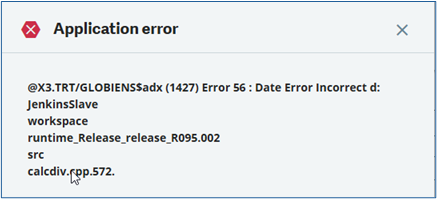
‘When trying to select a Fixed Asset I encountered the error message (Image #1 below) GLOBIEN$$adx (1427) Error 56: Date error incorrect’ Can you help?”

Img1

Img2 1024x588
Solution Provided

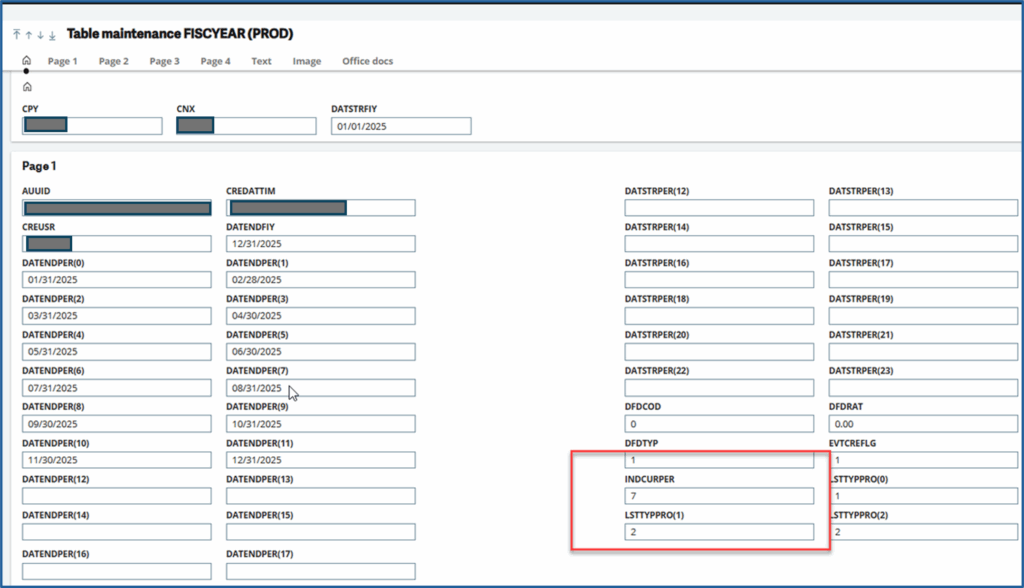
  1. Please go to Fixed Assets Depreciation Context as shown below.
    1. Note – Image #2 above is for training purposes. This Depreciation Context is not specific to any client.
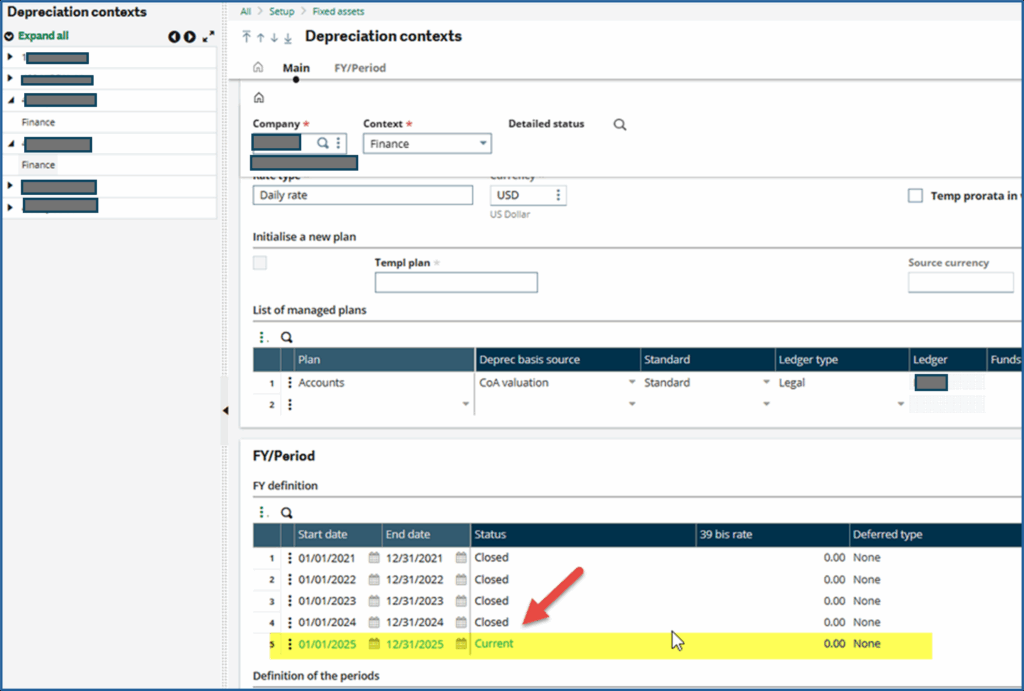
  2. What is the row number for the Current Period of the Company you are fixing?
    1. Note – In the example below (Image #3), its 5.
  3. If your screen shows July 7, then you should use 7
  4. Change the INDCURPER number (after you selected record CPY= ”###” and STAFIY=2) to the period you see labeled “CURRENT”.
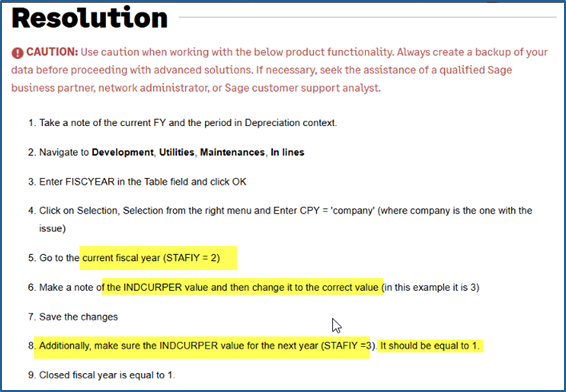
  5. Fix the record for the following year (reference the image show below)
  6.  The next year INDCURPER should be set to 1.

Img3 1024x691

Img4

Summary of the Issue:

  • Problem Statement: GLOBIENS$adx (1427) Error 56
  • Root Cause: There is an inconsistency on the current period index of the company
  • Problem Solution: To fix INDCURPER in table FISCYEAR

The problem was resolved by doing the following:

  • Step 1: Make a note of Current period in Depreciation Context
  • Step 2: (Image #4 Above) Go to GMAINT, table FISCYEAR, do a selection, CPY=’###’ and STAFIY=2. Take a screen shot first. Change INDCURPER to Current Period number 5 in this case. Save
  • Step 3: Do another selection, CPY=’###’ and STAFIY=3. Take a screen shot first. Change INDCURPER to 1 in this case. Save
  • Step 4: Go and select “Fixed Assets” for other companies to make sure you don’t have any more errors. If you get another error notification, repeat this process from step 1.

By following these steps, you should be able to quickly resolve the GLOBIENS$adx (1427) Error 56 and keep your Fixed Assets running smoothly. If you run into any challenges or have questions after reading this guide, please reach out to our team for further assistance.

MongoDB “MongoBleed” Vulnerability Mitigation for Sage X3

by Joe Harris, Sage X3 Technical Team Lead, Net at Work

A recently disclosed MongoDB vulnerability (CVE-2025-14847), informally known as “MongoBleed,” impacts nearly all Sage X3 environments. The issue involves a specific MongoDB compression method that may allow an unauthorized client to access memory, and it has been actively exploited in the wild. While the risk is reduced for deployments where MongoDB is protected behind an internal firewall, it is not fully eliminated.  

To address this vulnerability, MongoDB recommends using alternative compression protocols or disabling compression entirely as a workaround. Sage has released hotfix update editions of MongoDB for versions 4, 7, and 8, covering multiple patch levels of Sage X3 V12. For customers who choose not to apply the hotfix—or for earlier Sage X3 versions where no hotfix will be released—Sage recommends updating the MongoDB configuration to disable the affected compression method. Net at Work has tested and validated this mitigation when implemented using the procedures outlined below. 

Please note that applying this configuration change requires restarting both the Syracuse and MongoDB components of Sage X3. This work should only be performed during a planned maintenance window when all users are logged out of the system. 

Part 1: Changes to the mongodb.conf file 

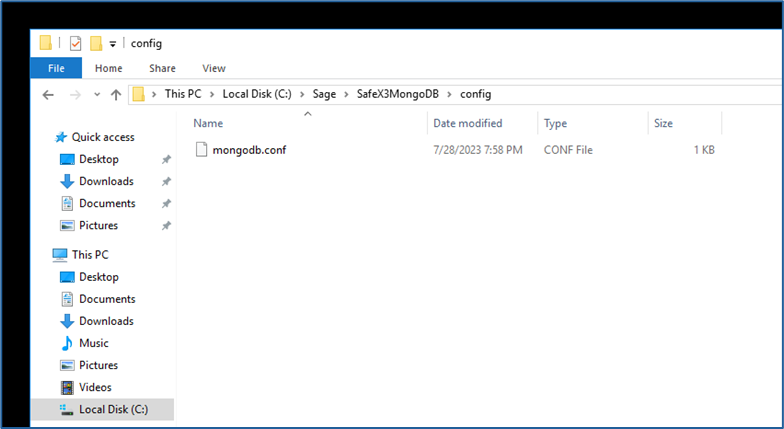
  1. Locate the file named “mongodb.conf” with your X3 instance’s MongoDB installation folder. It will be located in a subfolder named “config” 
    1. Example: Sage\MongoDBComponent\config 
    2. Different releases of the MongoDB component over the years have had different default naming conventions for the component folder. “MongoDBComponent” is the current standard and has been used consistently for the last several years and is the most common variant. If your X3 instance is older, your MongoDB folder may be named something like “MongoDB” or “SafeX3MongoDB” but it should still have a subfolder named “config” and a file named “mongodb.conf”.
      Mognobleed 1
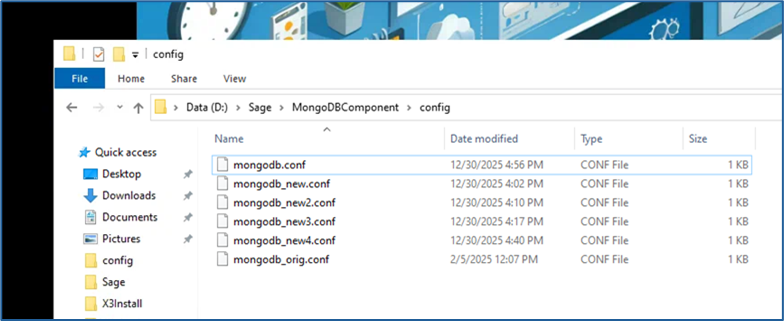
  2.  Copy the file, naming the copy something like “mongodb_original.conf” to save as a backup in case you need to revert to the unmodified version
    Mognobleed 2

    1.  It is imperative that this backup be made before any alterations to the file take place. Any issue with the syntax and layout of the config file will cause MongoDB to not restart successfully. If you are unable to restart the MongoDB service and no solution to the issue can be found, rename this backup as “mongodb.conf” to bring the MongoDB service back online. 
  3. A successful update of this file will require an advanced text editor such as Notepad++. Sage and Net At Work recommend Notepad++ for its wide-ranging utility and typically install it on every X3 server as part of a standard deployment. If you do not have it installed on your MongoDB server, it can be downloaded for free from the publisher here. 
    1. Any other text editor that can display space, tab, and end of line symbols can be used instead if that is preferred, though the rest of these instructions assume use of Notepad++. It is NOT recommended to use standard Microsoft Notepad for this change, as it lacks functionality to validate space and tab formatting. 
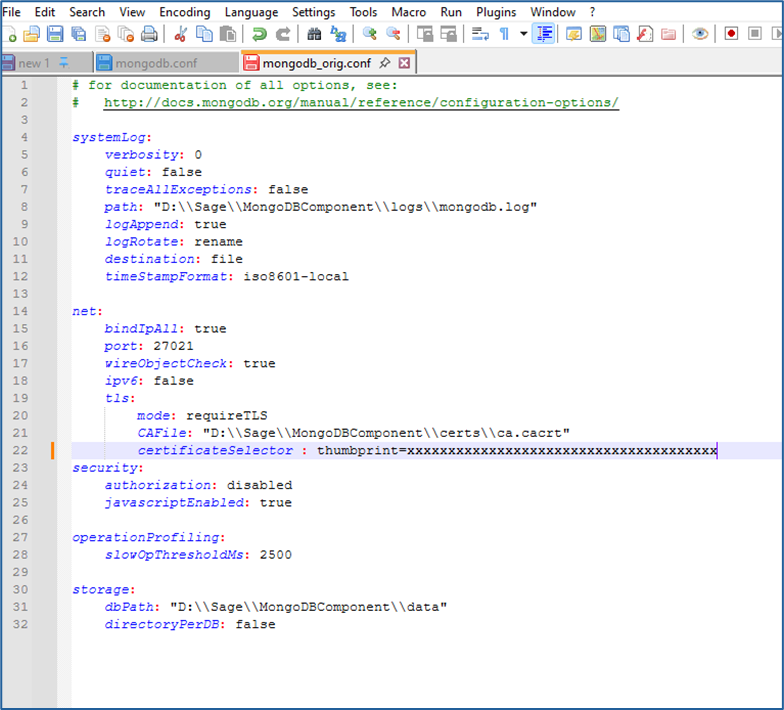
  4. Open the “mongodb.conf” file in Notepad++ 
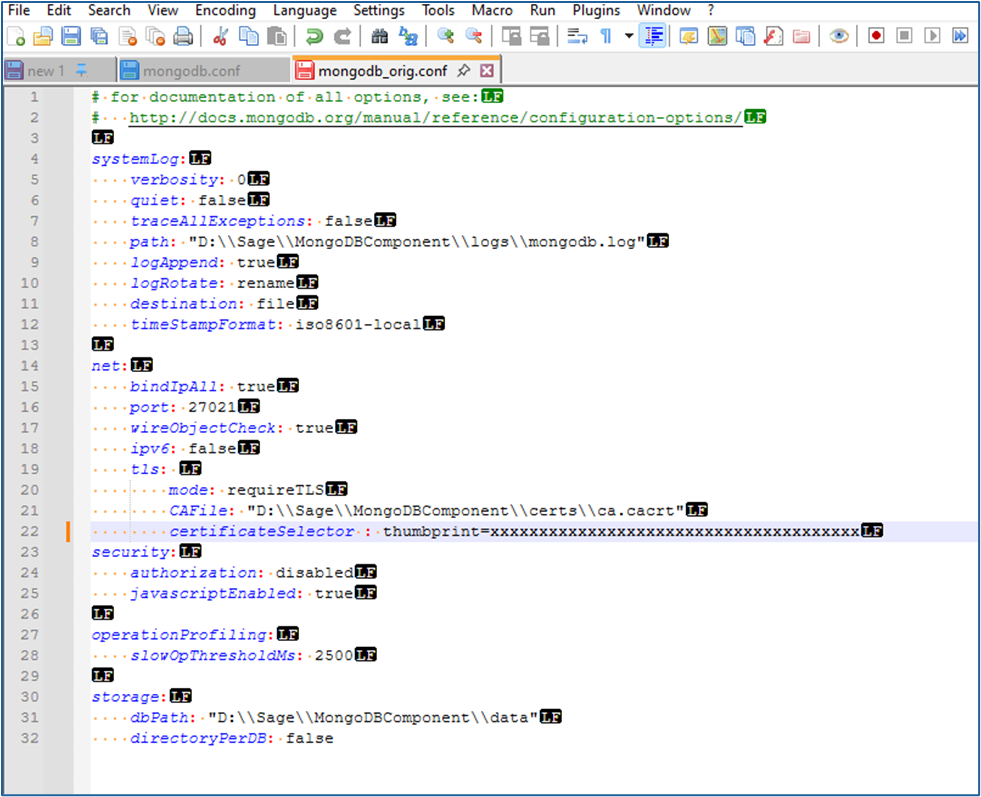
    1. It should look similar to this, with file paths and folder names specific to your instance:
      Mognobleed 3
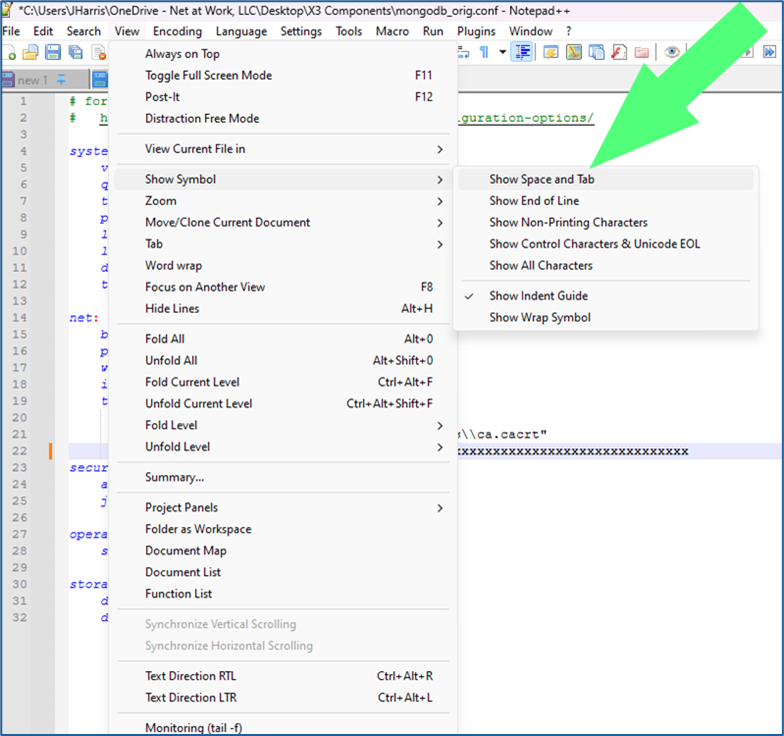
  5.  On the upper tool bar, select View – Show Symbol – Show Space and Tab and View – Show Symbol – Show End of Line
    Mognobleed 4
  6.  Once these two views have been selected, your file should appear like the following:
    Mognobleed 5

    1.  You should see yellow dots denoting spaces, and the “LF” symbol at the end of each line 
      1. Some older versions of Notepad++ only allow you to select one additional symbol view or the other. If your version only allows this, download and install the latest version of Notepad++ and use it. Both character views need to be seen simultaneously 
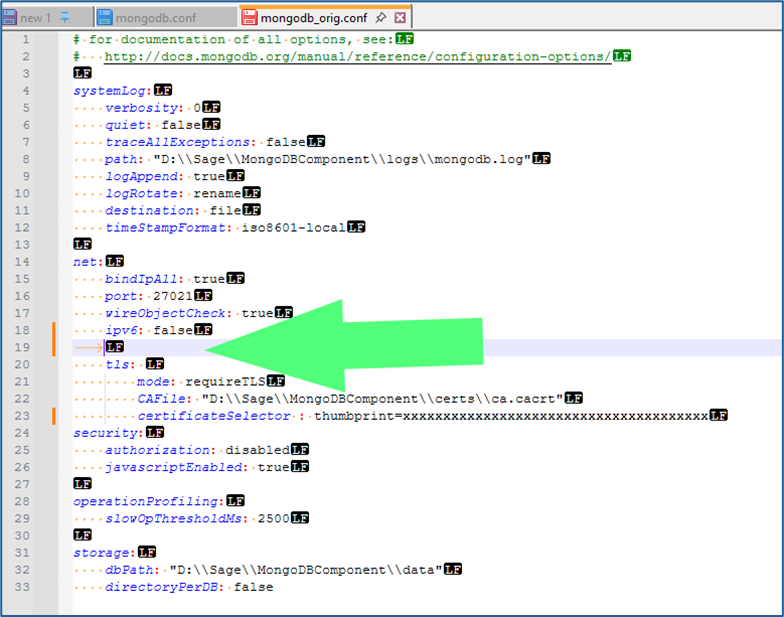
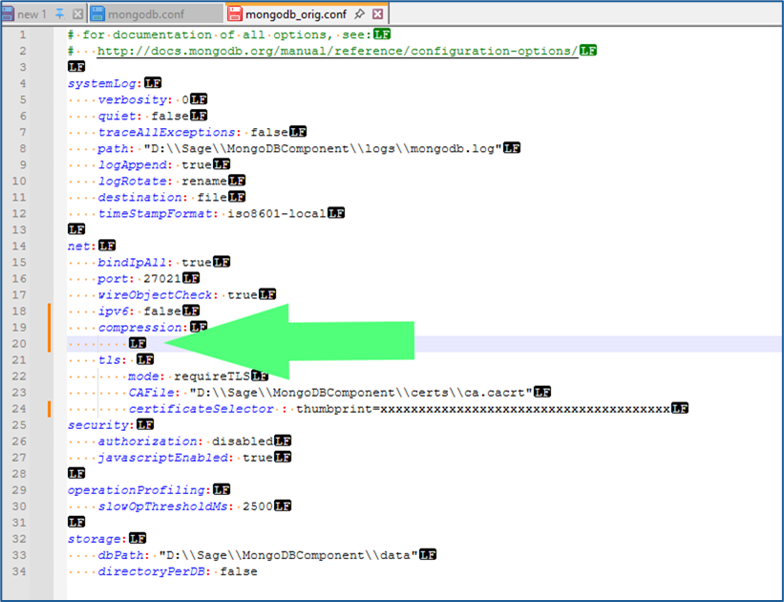
  7. Within the section of the file headed as “net:” and below the line containing “ipv6: false” and above the line containing “tls:” add an additional line.
    Mognobleed 6
     

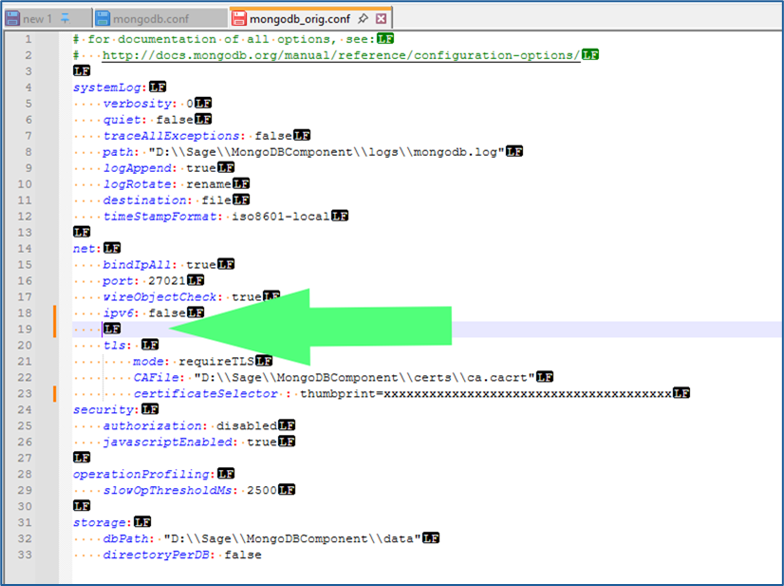
    1.  NOTE: The new line has been added with a TAB rather than spaces. That’s what the yellow arrow symbol in the screenshot above indicates. The tab now needs to be removed, and spaces added in its place:
      Mognobleed 7
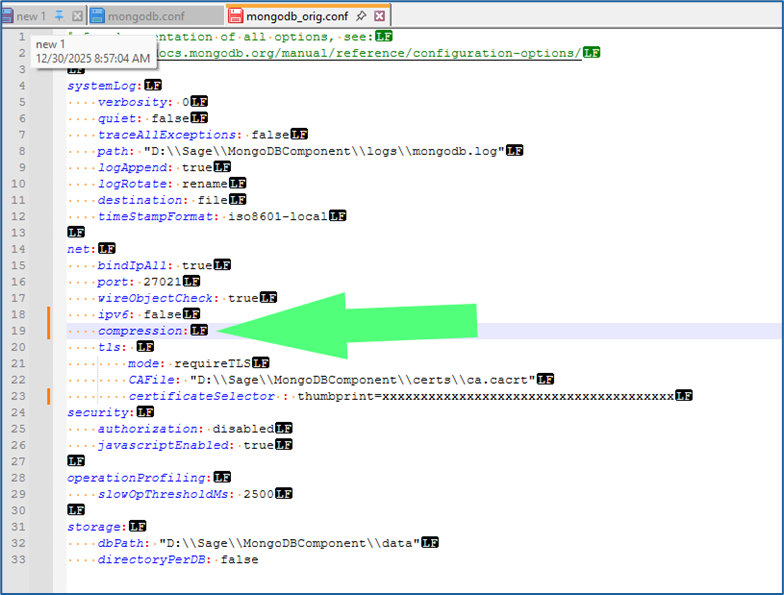
  8.  Add the following on this line, without the quotation marks, but with the colon: 
    1. “Compression:”  
      1. The beginning of this entry should align precisely with the lines above and below it:
        Mognobleed 8
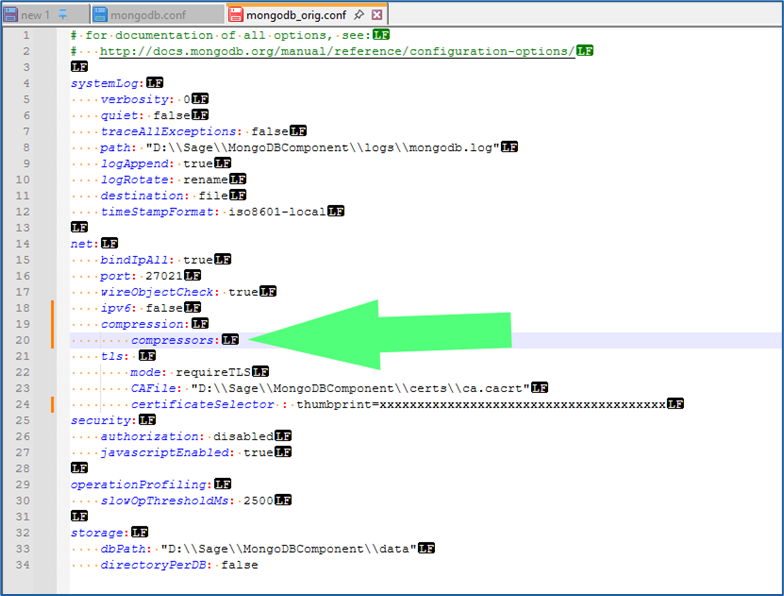
  9.  Add another line below “compression:” and above “tls:” 
    1. Repeat step 7 to remove the tab character and replace with spaces. This line should contain additional spaces so that it aligns with the lines below “tls:” such as “mode:” and “CAFile:”
      Mognobleed 9
  10.   Add the following text, without the quotation marks but including the colon 
    1. “Compressors:”
      Mognobleed 10
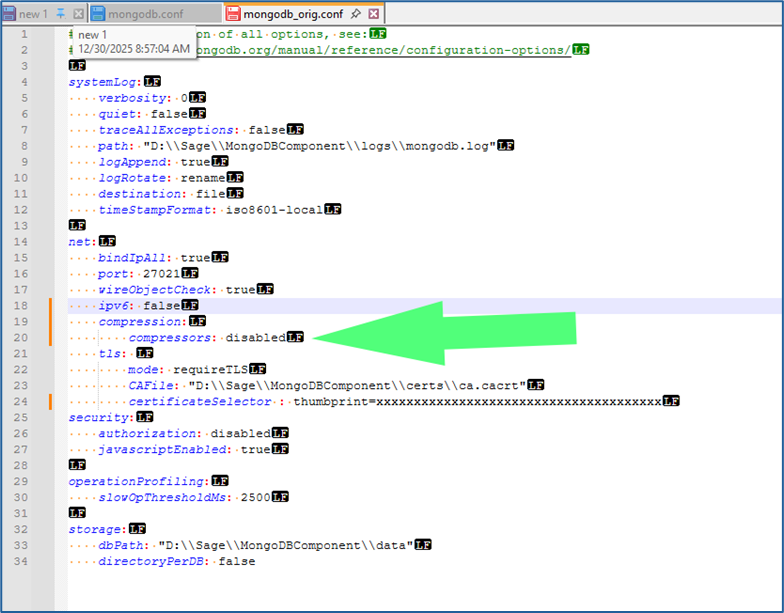
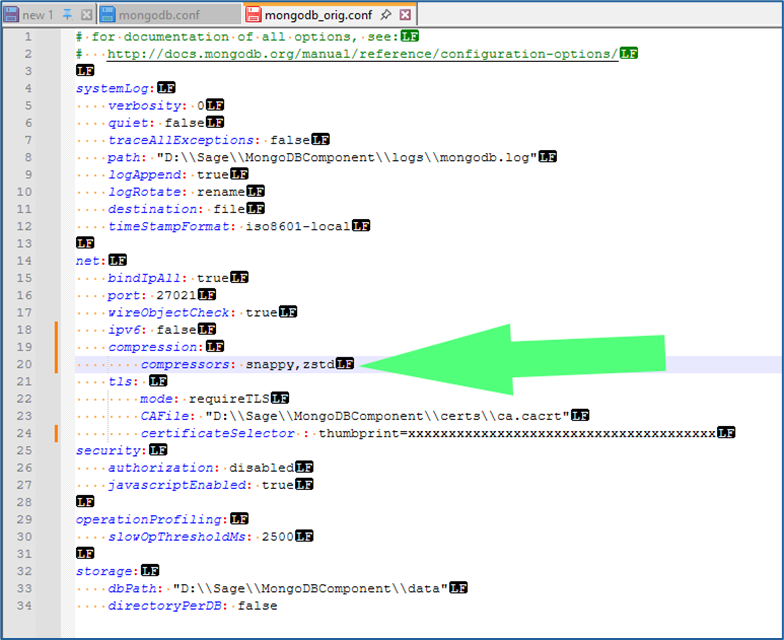
  11. Add the following text, depending on preference and situation, following “compressors:” and a single space (without quotation marks) 
    1. “Disabled” 
      1. Use this to disable all compression by MongoDB. This is Sage’s suggestion for all instances, and Net At Work’s recommendation if your MongoDB instance is on the same server as your Syracuse webhost component, and no other Syracuse webhosts are part of the solutionMognobleed 11
         
      2. “snappy,zstd” 
        1. Use this to allow MongoDB to continue to use the Snappy and ZSTD compression methods, while disabling the ZLIB compression method, which is the one affected by the security vulnerability 
        2. This allows MongoDB to continue using data compression, which it typically uses when communicating across the local network to remote Syracuse instances. Use this method if you wish to continue allowing MongoDB to use compression methods unaffected by the announced vulnerability 
      3. “snappy” 
        1. Some older versions of MongoDB and X3, such as X3 V11, do not include the ZSTD compression method and can only use the Snappy method. Use this and omit the “,zstd” if you are on X3 V11 or older and wish to continue to use data compression in MongoDB
          Mognobleed 12
  12.   Verify that the correct spacing, alignment, and line returns are in place so that it matches the example screenshots exactly. Misaligned spacing, incorrect positioning, or the presence of tabs instead of spaces will prevent MongoDB from running 
  13. Save the updated file 
    1. Note that the updated configuration will only go into effect once the MongoDB service has been restarted. It does not go into effect immediately. 

Part 2: Shutdown of X3 and Components

  1. The following procedure is for how to perform a clean shutdown of X3. This should be done prior to restarting MongoDB to pick up the modifications to the config file to mitigate the vulnerability. If you are already familiar with this process, you can skip to section three. 
  2. Log into X3 and access your Production folder. 
  3. Use the compass icon above to get to the X3 Menu 
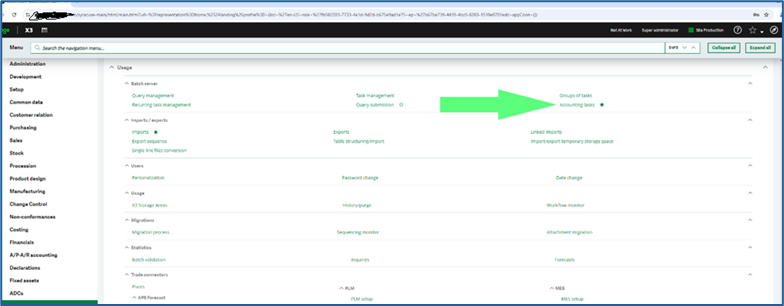
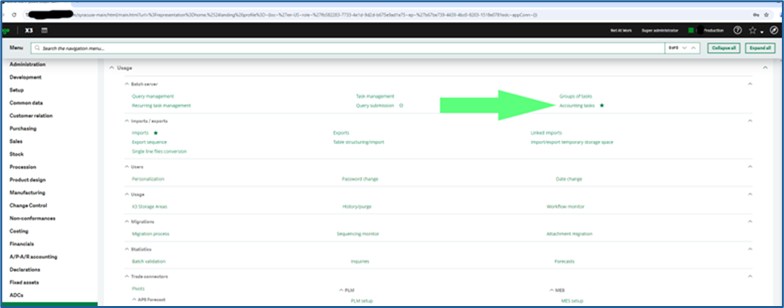
  4. Navigate to Usage>Batch Server > Accounting tasks
    Mognobleed 13
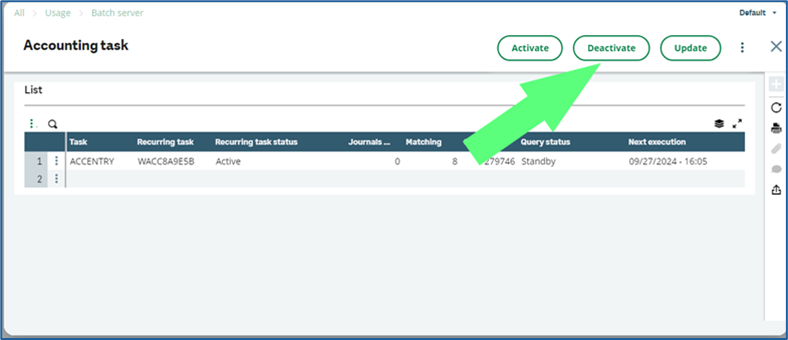
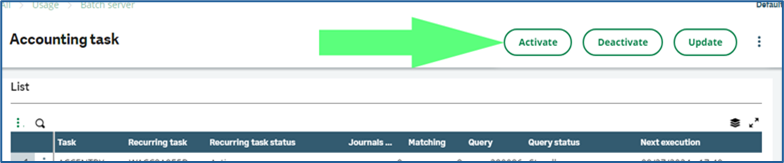
  5. Click the Deactivate button
    Mognobleed 14
     

    1.  Use “X”  the  button to back out of the Accounting task screen 
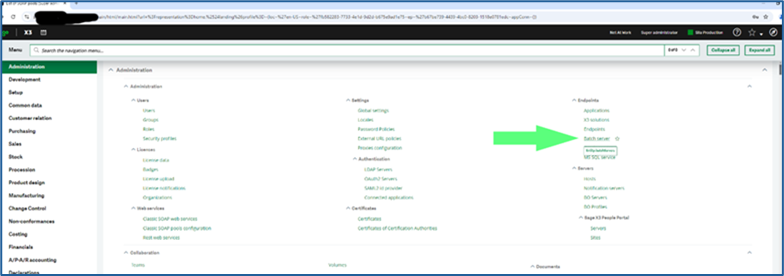
  6. Navigate to Administration > Endpoints > Batch server
    Mognobleed 15
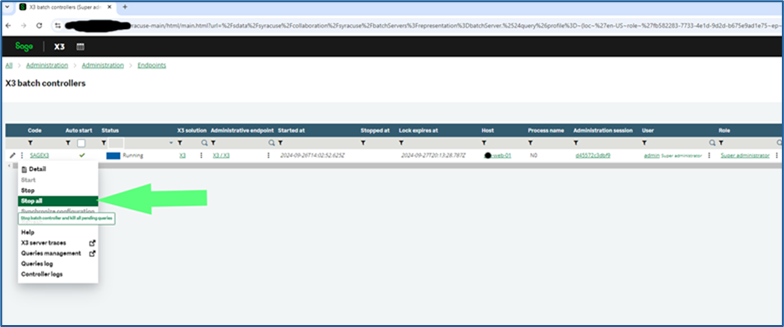
  7.  Click on the 3 vertical dots and select “Stop All” to stop the batch server
    Mognobleed 16
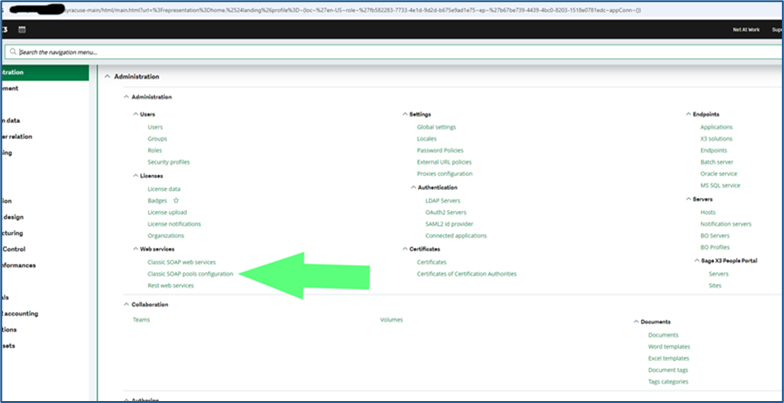
  8.  Stop WEB Pool Services
    Mognobleed 17
     

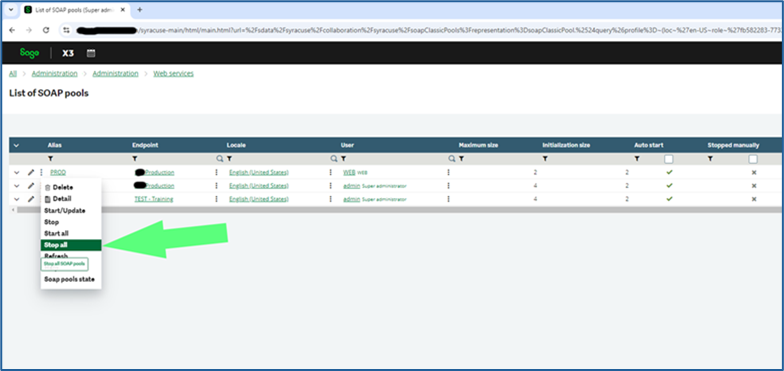
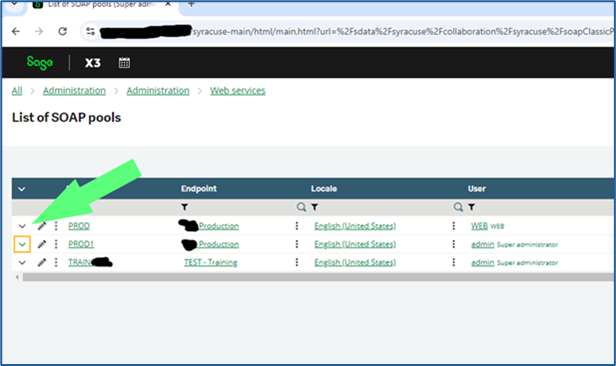
    1.  X3 -> Administration -> Administration -> Web services -> Classic SOAP pools Configuration 
    2. Select the triple dots on each of the listed pools that have the \/ icon (indicating that they are running) next to Alias and click StopMognobleed 18
       

      1.  Click the Trashcan icon on each of the notification windows once each has confirmed stopped to clear the message from your screen. 
  9. Connect to the Windows desktop of your Syracuse server (or servers) 
  10. Open Services.msc 
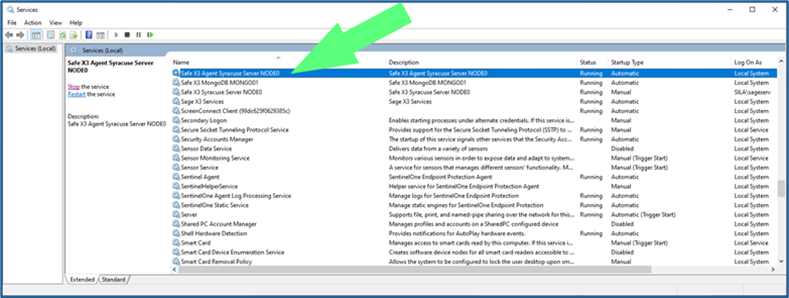
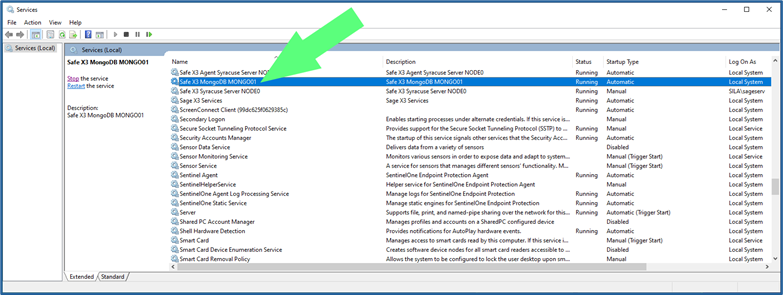
  11. Stop the Syracuse service 
    1. For versions of X3 prior to V12 P36, there are two services, one named “Safe X3 Agent Syracuse Server NODEx” and one named “Safe X3 Syracuse Server NODEx” 
      1. The “x” in the names above represent a number, usually 0 but sometimes 1, 2, 3, 4, etc.
        Mognobleed 19
    2.  Stop the service named “Safe X3 Agent Syracuse Server NODEx” 
    3. This service controls the “Safe X3 Syracuse Server NODEx” service as well – stopping the Agent service will also stop the NODEx service. 
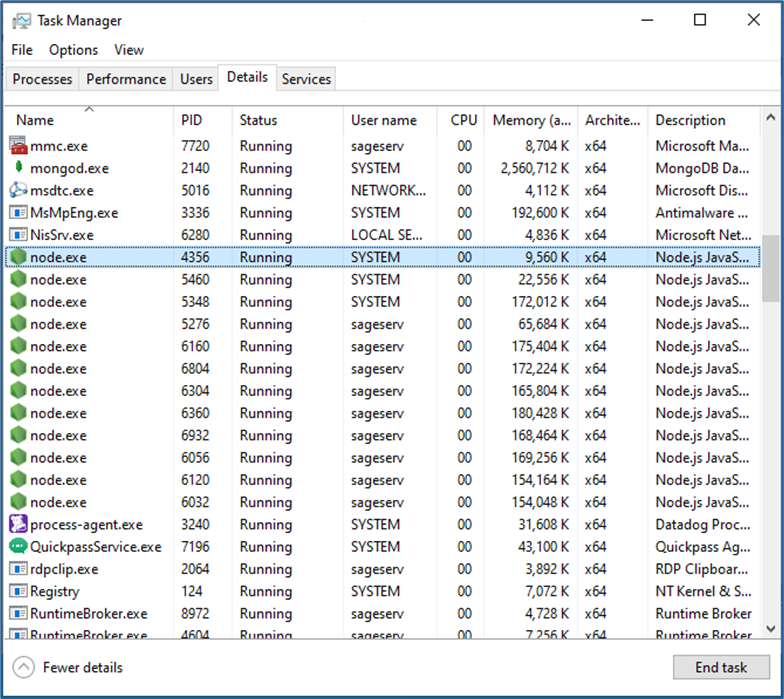
    4. If this service hangs up during the stop procedure, open Task Manager, go to the Details tab, select each instance of the “node.exe” process, and click End Task
      Mognobleed 20

      1.  ONLY perform step 2 above if the two Syracuse services do not successfully stop on their own 
    5. For versions of X3 after V12 P36, there is only one service named “Safe X3 Syracuse Server NODEx” 
      1. The same procedure as above can be performed while stopping only this service 
  12. If you have multiple Syracuse host instances in your X3 solution, repeat step 23 on all servers prior to proceeding with shutdown of MongoDB 
    1. If you also have a “Sage X3 Services” instance, stop this as well before proceeding 

Part 3: Stop and Restart of MongoDB Service

  1. Once all Syracuse and associated processes have been stopped on all servers, it is safe to restart MongoDB. 
    1. Stop the service named “Safe X3 MongoDB MONGOxx”
      Mognobleed 21
  2.  Start the Safe X3 MongoDB MONGOxx service 
    1. If you get an error when attempting to restart this service, it is likely that there is a configuration, layout, or bad character in your revised “mongodb.conf” file 
    2. Re-verify the changes made in section I above 
    3. If you are still unable to restart MongoDB, change the name of your revised “mongodb.conf” to something like “mongodb_new1.conf” and rename the backup copy created in step 1 as “mongodb.conf” 
      1. This will rollback the config change made and will not mitigate the vulnerability, but it will make X3 functional again. 
  3. Once the Safe X3 MongoDB MONGOxx service is running again, you can restart all Syracuse services on all servers 
    1. Also restart Sage X3 Services if present after all Syracuse services have been restarted 
  4. Once Syracuse has restarted successfully, log back into X3. 
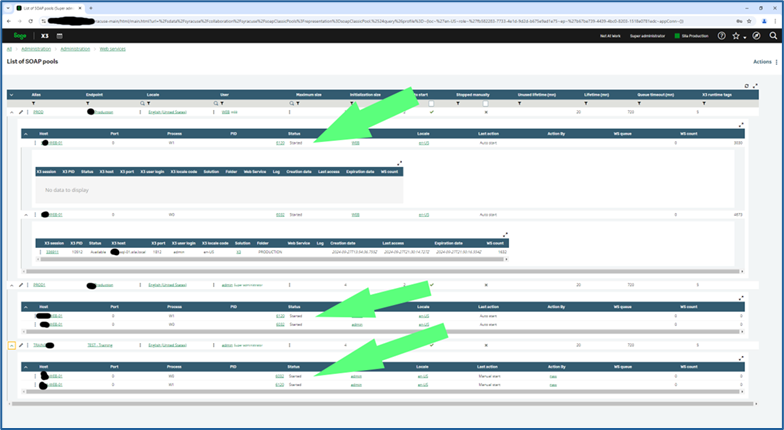
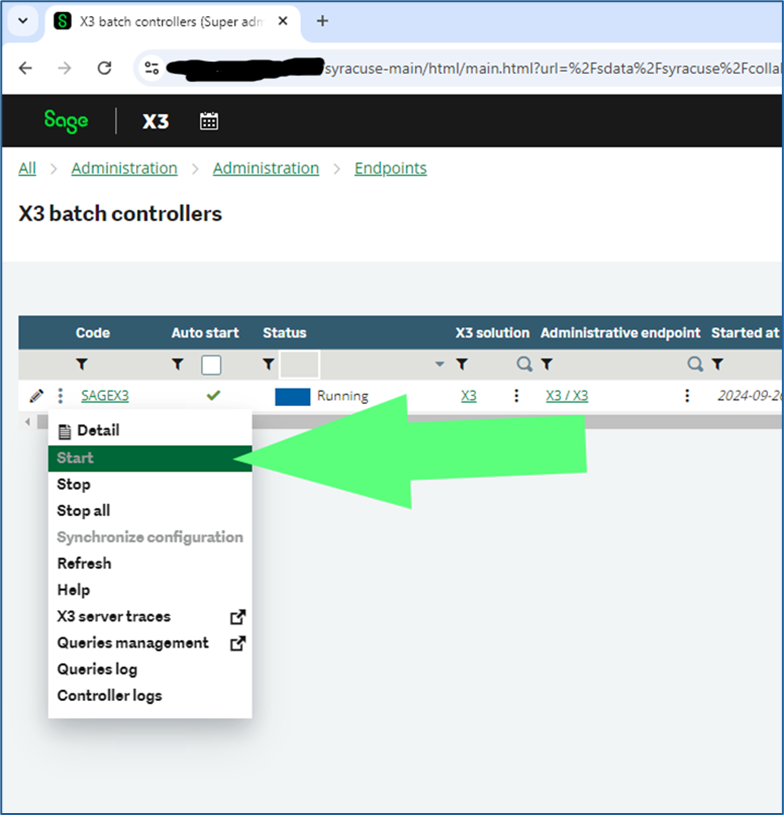
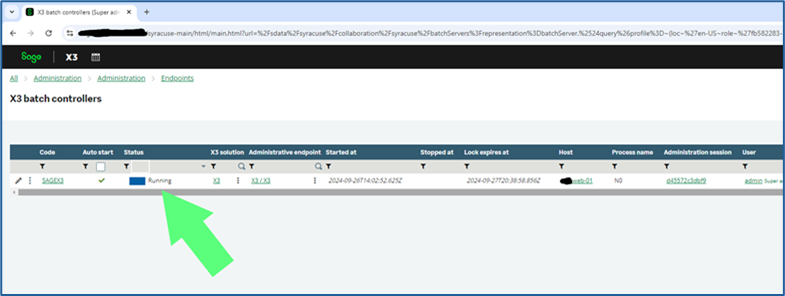
    1. Check that the batch server and all SOAP pools that are set on Auto Start have started running again. They are supposed to after a Syracuse restart. 
    2. If they did not, click the three dots as in section II above next to their names and click “Start”
      Mognobleed 25 Mognobleed 24 Mognobleed 23 Mognobleed 22
    3.  Go back into Usage > Batch Server > Accounting tasks  
    4. Click the Accounting task button
      Mognobleed 26
    5. Click the Activate button
      Mognobleed 27
    6.  Use “X” the  button to back out of the Accounting task screen 

Upon completion of these steps, your Sage X3 environment should be successfully mitigated against the MongoBleed vulnerability. If you encounter any issues, we recommend reviewing each step carefully to confirm configuration accuracy. Should you require assistance at any point, the Net at Work Sage X3 technical team is available to support you. 


Client Technical Xperience Plan (CTXP) for Sage X3

Stay Focused on Your Business. We’ll Handle System Performance

Ensure your system remains secure, stable, and optimized with Net at Work’s CTXP for Sage X3. Our proactive approach helps prevent issues before they arise, keeping your business running efficiently and securely.

Monthly Technical Reviews

Stay ahead of potential risks with a proactive assessment of your system’s health. Our monthly technical reviews provide:

  • Actionable Insights – A structured report outlining areas that require attention before the next review.
  • Completion Notification – An email confirmation detailing the process and next steps.

Quarterly Preventative Health Check

A comprehensive deep-dive into your system’s performance, security, and overall health to help ensure it continues to run efficiently.

  • Comprehensive Report – Insights from past reviews, performance metrics, and key findings.
  • Expert Recommendations – Tailored guidance on optimizations, security enhancements, and best practices.
  • Strategic Review Meeting – A dedicated session with our ERP specialists to discuss findings and align strategies with business goals.

Sage X3 License and SSL Certificate Update

We proactively manage your Sage X3 licenses and SSL certificates to maintain system functionality, security, and compliance. Helping to minimize disruptions and protecting your business from potential risks.

  • License Renewal & Validation – Acquisition and installation of Sage X3 license keys to ensure uninterrupted access.
  • SSL Certificate Renewal & Installation – Securing encrypted connections to protect sensitive data.
  • System Compatibility Check – Pre-update verification to prevent conflicts and ensure seamless transitions.
  • Testing & Validation – Post-update checks to confirm successful licensing and security configurations.
  • Completion Notification – A confirmation of updates performed.

Folder Refreshes

Maintain an accurate, up-to-date test environment with two folder refreshes included per year and more available upon request. This allows your team to safely test new configurations, troubleshoot issues, and validate changes before deployment. Thereby reducing risk and ensuring smooth upgrades.

  • Full Endpoint Replication – A secure and accurate copy of your production endpoint is transferred to the test environment, ensuring data integrity and consistency.
  • Environment Configuration – Adjustments to database connections, system parameters, and integrations to align with test environment requirements.
  • Validation & Integrity Checks – Post-copy verification to ensure data accuracy, proper system functionality, and alignment with expected configurations.
  • Completion Notification – A notification of refresh performed.

CTXP Features & Schedule

X3 Insider01

Proactive Maintenance. Expert Support. Total Peace of Mind.

With Net at Work’s CTXP for Sage X3, you benefit from ongoing system optimization, preventative maintenance, and expert guidance. Experiencing total peace of mind as a result.

Ready to Get Started?

Leave the complexity, security risks, and budget constraints of constant maintenance to Net at Work. Whether you’re looking to reduce costs or improve security, the CTXP Plan for Sage X3 is the obvious choice. Contact us today.

Customize Your View: How to Add Header Fields to your Left List in Sage X3

Customizing the left list in Sage X3 is a simple way to make your workspace work better for you. By adding the fields that matter most to your daily tasks, whether you are managing orders, invoices, or inventory, you can quickly see the information you need without extra clicks or searches.

Here are seven great reasons to enhance your left list with header fields.

1. Faster Filtering and Navigation

Quickly narrow down records without opening full search dialogs. This reduces time spent scrolling or manually searching through large datasets.

2. Improved Data Visibility

Display key fields such as status, customer name, site, or date for instant context. This helps users identify relevant records at a glance.

3. Supports Role Specific Workflows

Finance, logistics, and sales teams can each tailor their view to highlight what is most relevant to their daily tasks.

4. Better Decision Making

Having filterable fields such as “Order Status” or “Priority” visible helps users act more quickly and with greater accuracy.

️ 5. Reduces Errors

Easier filtering reduces the chance of selecting or editing the wrong record. This is especially valuable in high volume environments like order entry or inventory management.

6. Boosts Productivity

Streamline repetitive tasks such as checking open orders, pending invoices, or stock levels. Fewer clicks mean more time for higher value work.

7. Supports Custom Business Logic

If your organization uses custom fields such as region codes or internal flags, adding them to the left list makes them visible and actionable. This enhances the value of your existing Sage X3 customizations.

Adding Header Fields to the Left List

To make this customization, follow these simple steps:

  1. Go to Setup > General Parameters > Personalization > Objects
  2. Find the object for the document type you want to modify
  3. Select the Action button on a line and choose Insert
  4. Add the field you want to appear on the left list
  5. Click Save (no validation needed)

Picture1

We hope you enjoyed this week’s X3 Insider Tips & Tricks blog. More helpful insights are on the way, so be sure to keep an eye out for future editions. In the meantime, if you have any questions about getting the most from your Sage X3 system, don’t hesitate to reach out. The friendly experts at Net at Work are always here to help.

A Faster, More Secure Way to Support Your Sage Environment

At Net at Work, we are always looking for better ways to support our Sage X3 and Sage 500 clients. That means making support faster, simpler, more secure, and easier to manage when you need help most.

To help improve the support experience, we are excited to introduce a new Remote Access Solution for Sage X3 and Sage 500 clients.

The Challenge We Set Out to Solve

When an urgent support issue comes up, every minute matters. But the process of getting connected can sometimes slow things down.

Coordinating VPN access, configuring MFA, waiting on IT approvals, and working through internal queues can delay the start of a support session. For time sensitive issues, those delays can add unnecessary stress and extend the time it takes to reach a resolution.

Introducing Our Remote Access Solution

To help remove those barriers, Net at Work now offers a subscription based Remote Access Solution powered by ScreenConnect, a secure remote access platform designed for efficient support and troubleshooting.

This solution creates a streamlined connection between our support team and your environment while maintaining strong security, transparency, and control. Instead of waiting for access coordination each time support is needed, our team can connect more quickly and begin working toward resolution.

What This Means for You

Instant Connectivity – No more waiting on IT coordination just to begin a support session. Our support team can quickly connect, begin troubleshooting, and work toward a faster resolution.

Enterprise-Level Security – Your environment remains fully protected with AES-256 encryption and multi-factor authentication (MFA). Complete session audit logs are included as well, ensuring visibility, transparency, and compliance.

Reduced Support Delays and Costs – Faster access means faster troubleshooting. By reducing connection delays, we can help minimize downtime and improve support efficiency.

You Maintain Control Throughout the Process – Access is permission based. You can grant, monitor, and revoke access at any time, giving your team full control over your systems through the entire process.

Simple, Quick Setup – Getting started is easy and setup on your end takes approximately 15 minutes.

A Better Support Experience Starts Here

Support should begin with solving the issue, not untangling access roadblocks. With Net at Work’s Remote Access Solution, Sage X3 and Sage 500 clients can benefit from faster connection times, stronger visibility, and a more efficient path to resolution when support is needed most.

This solution is also part of our broader commitment to helping clients get more value from their technology investments. For both Sage X3 and Sage 500 users, Remote Access is included with the Client Technical Xperience Plans (CTXPs) and is also available as an add-on to our Business Intelligence Xperience Plans, also known as BIXPs.

Together, these offerings are designed to give clients a more proactive, connected, and confident support experience. Whether you are looking to reduce downtime, improve system performance, strengthen analytics, or make support easier to manage, Net at Work can help you get the most out of your technology.

To learn more about the Remote Access Solution, CTXP, or BIXP, contact the experts at Net at Work today.